Last Modified September 29, 2026
- Home
- Guides
- How To ...
- Feature-Based Licensing
With Feature-Based Licensing you can offer multiple variants of your application at different price points using
configuration information embedded in the software_DNA License file (the "CDM" License file).
You can specify Features or attributes for a specific License Code that
your Application can use to tailor its features / capabilities on start-up (for example "Extended Templates").
This feature uses the <license_data>
Custom Field which is specific to a
License Code, included in the ".CDM" License file on activation, and can be retrieved by your application using the DNA_PARAM() API call.
Setting the <license_data> field
The <license_data> field is set:
automatically when an eCommerce transaction is received and the DNA eCommerce Connector configuration specifies a
<license_data> setting for this SKU. (max 200 characters)
an eCommerce transaction is received and includes the <license_data> information that overrides
the DNA eCommerce Connector configuration (max 200 chars).
This is available only with selected eCommerce Connectors.
a RESTful API License Update command is received.
the <license_data> information is edited directly from the Code View screen for a
specific License Activation Code (max 1,024 characters).
a License Code is generated using the DNA Control Panel Code Generator.
Implementation with an eCommerce connection
In the software_DNA Control Panel
Create or use an existing Product
In the DNA Product Configuration screen, edit the Licensing Options and enable
Custom Fields
In the DNA eCommerce Connector configuration screens, add the <license_data>
information associated with
the SKU’s received via the eCommerce connection
Feature Upgrades via your eCommerce (optional)
If you want to offer Feature Upgrade type of products, you will need to configure a
mandatory
input field in the Order screen to capture the License Activation Code to which this upgrade will apply.
Not all eCommerce solutions support Upgrades. Consult the Integration Guides
for further details.
You can specify the <license_data> directly in the eCommerce product configuration which will
override the default <license_data> setting configured in the DNA eCommerce Connector configuration.
Consult the eCommerce Integration Guides for further details
Issue Test Orders from the eCommerce Control Panel and view the License Codes in the DNA
Control Panel to ensure all is OK
Manual Implementation of Feature-Based Licensing
Create or use an existing Product
In the DNA Product Configuration screen, edit the Licensing Options and enable
Custom Fields
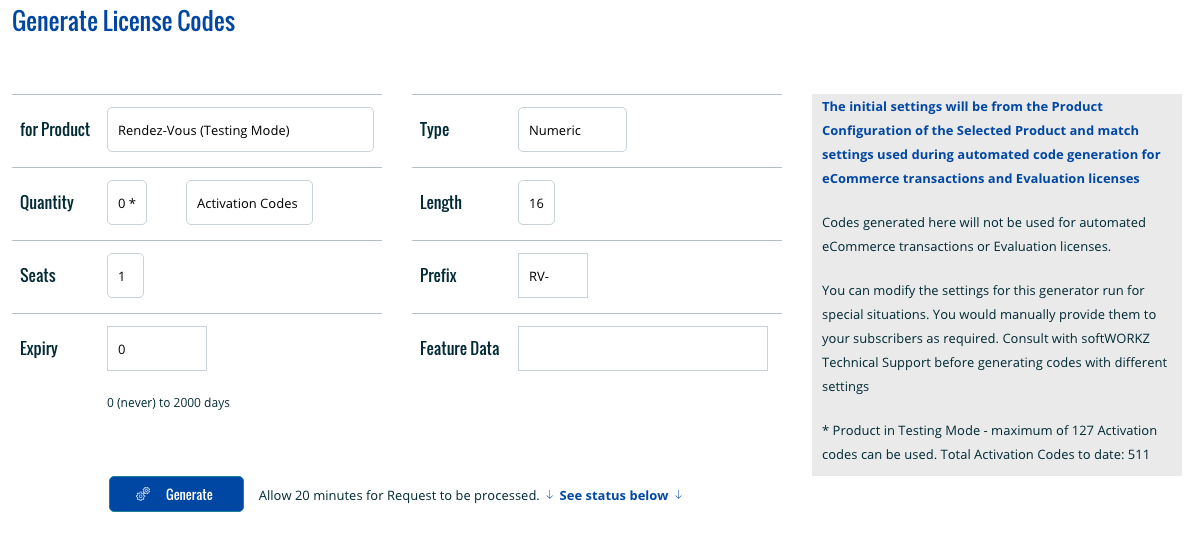
To generate License Codes, use the Code Generator under the Codes -> Generate Codes menu, choose
the License Code settings, the quantity, and specify the <license_data> field to be used when
creating the License Codes.
Distribute the License Codes to your users as required
Coding in your application with the DNA API
Use the DNA_PARAM() API Call with LICENSE_DATA to recover the
<license_data> information
from the CDM License file after activation and configure your application settings accordingly.
Any changes to the <license_data> information from an "Upgrade" eCommerce transaction, or from
editing the <license_data> in the DNA Control Panel, will be written to the ".CDM"
License file at the next
DNA Server Validation (typically within 24 hours for products with Validation Level 2 or Level 3), or the next
Re-activation (Level 1, 2 or 3).
You can trigger the CDM License file update on demand by:
Implementing a Refresh License button in your application
When clicked, perform a DNA_ReActivation() API Call. Depending on your software_DNA Product configuration,
the User may need to provide the Current License Code
Password and a "New and Never Used" password to complete the re-activation
Retrieve the new <license_data> information using the DNA_PARAM() API call
Viewing and Managing the <license_data> information in software_DNA
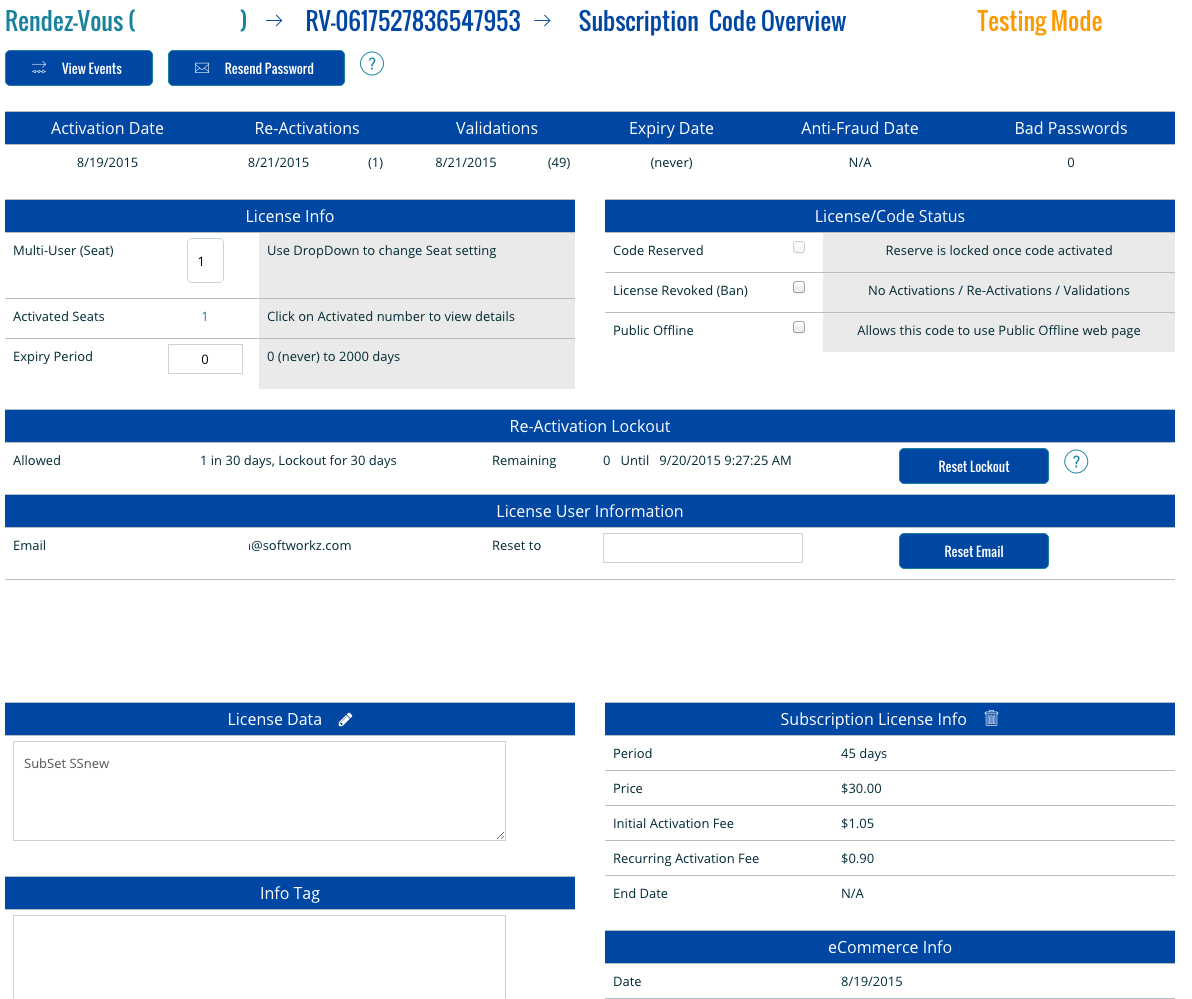
Use the Codes -> Search menu to view details on a License Activation Code (see screen shot below). The
<license_data> information will be shown when Feature-Based Licensing (Custom Fields) is enabled.
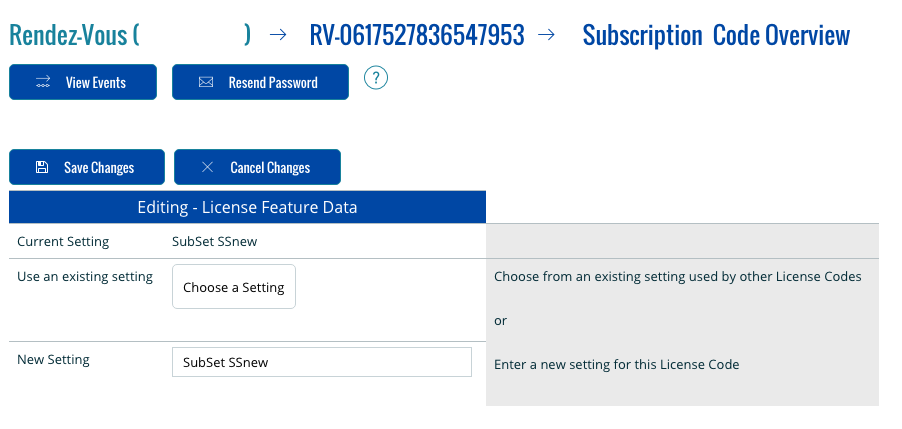
Click on edit () to update the
<license_data>. You can enter new license
data information or choose a setting already used by other License Codes from the Drop-Down List.
This updated information
will be stored in the ".CDM" License file at the next DNA Server Validation or Re-Activation