Last Modified October 1, 2026
- Home
- Guides
- Custom Activation
- Alternative Implementations
There are many ways that software_DNA can be implemented using the "Custom Activation" approach that
gives you flexibility on the sequence of events in the Activation process.
Below are some examples of implementations frequently used by software developpers.
Intro Screen with "Activate" button
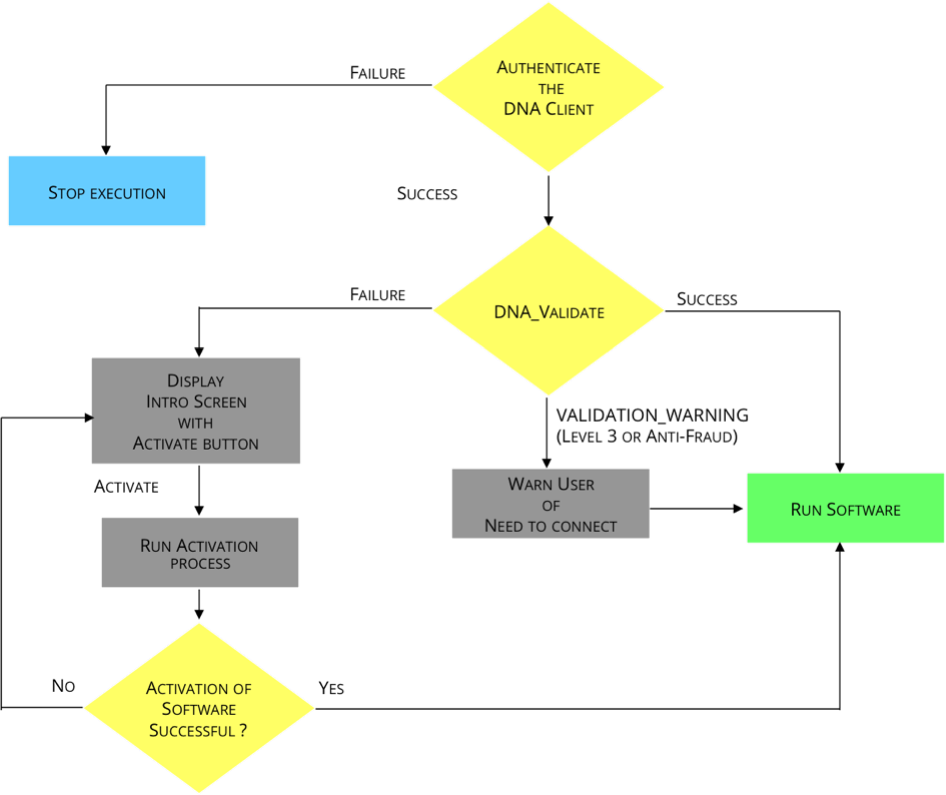
With this approach, if no License file exists, then the User is presented with an "Intro Screen" from
the Application, instead of immediately seeing the Activation Screen.
You can design the "Intro Screen" as you want. For example, it could include:
- Welcome Message
- Instructions about the Activation Process
- Instructions on Evaluation Licenses
The sequence seen by the User:
License is checked immediately on start-up using the DNA_Validate API Call.
If a valid license exists, the software is run
If there is no valid license, the software displays an "Intro Screen"
including information on the application, an Activate button,
and explanations about the Activation process, etc.
When the Activate button is clicked, then the
application should run through the Activation / Re-activation process as required.
Software is run if success, or stopped if failure
Silent Evaluation on Initial Start-Up
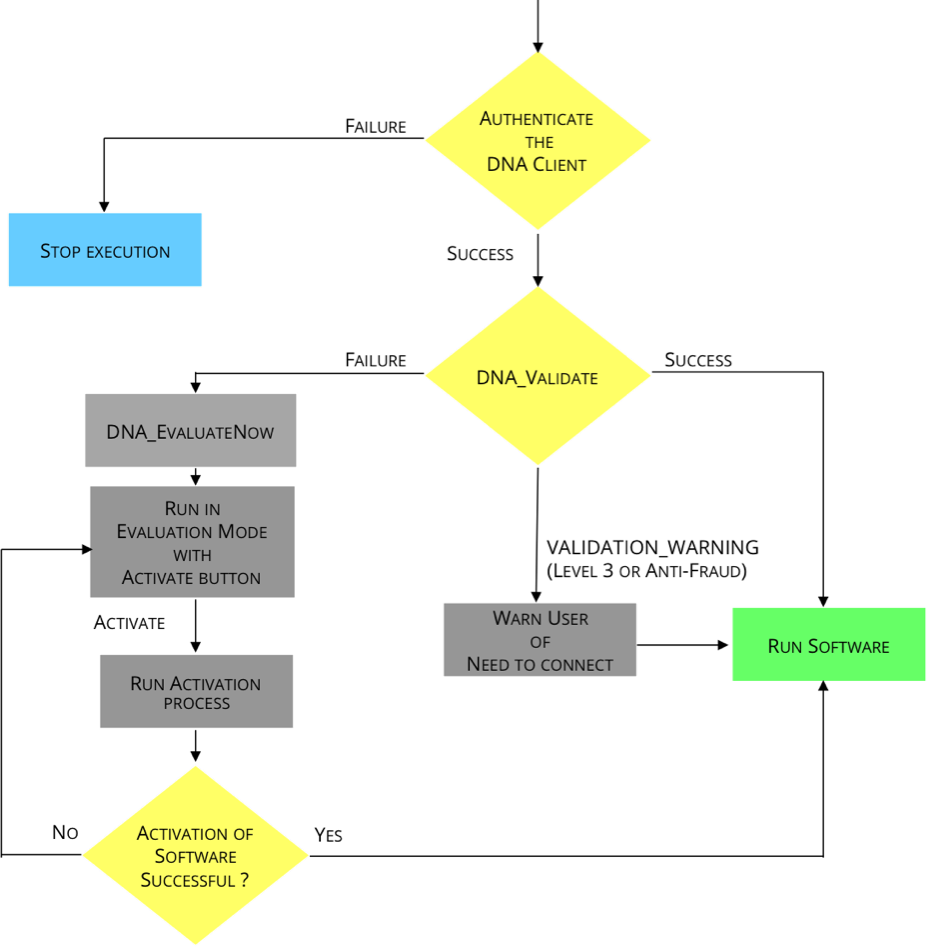
When the User initially installs and starts the Application, you may want him to immediately start with an Evaluation License,
with the option of upgrading to a full license via a button or menu item. You can then present the User with an
"Intro Screen".
You can design the "Intro Screen" as you want. For example, it could include:
- Welcome Message
- Instructions about the Activation Process
- Details on his Evaluation License (ex: "There are 30 days left in your Evaluation").
The sequence seen by the User:
License is checked immediately on start-up using the DNA_Validate API Call.
If a valid license exists, the software is run
If there is no valid license, a call to DNA_EvaluateNow is made which assigns a random
Evaluation Code with the expiration period configured for this product, and activates it.
The software can now run in "Evaluation / Trial Mode", typically full-featured mode, until the
Evaluation License Code expires.
The software also displays an Activate button or menu item
for when the user is ready to activate with a purchased License Activation Code.
When the Activate button is clicked, then the
application runs through the Activation / Re-activation process as required.
Software is run if success, or stopped if failure.
DNA Server Validation ONLY when appropriate
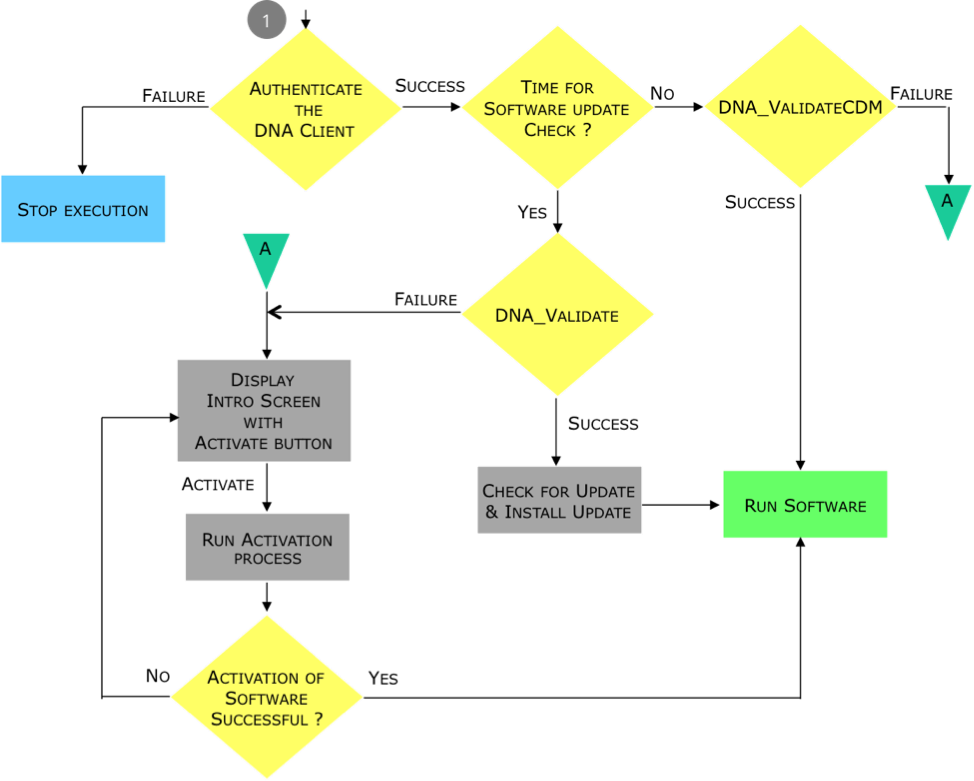
You may want that the Application does a DNA Server Validation ONLY at certain times. At any other time,
you would perform only a local CDM Validation using the DNA_ValidateCDM API Call.
The sequence seen by the User:
When the Application is started, you determine if it is time for a DNA Server Validation or not.
If not, the License is checked using the DNA_ValidateCDM API Call.
If it is time for a DNA Server Validation, then the License is checked using the DNA_Validate
API Call
In either case, if a valid license exists, the software is run
If there is no valid license, the software displays an "Intro Screen"
including information on the application, an Activate button,
and explanations about the Activation process, etc.
When the Activate button is clicked, then the
application runs through the Activation / Re-activation process as required.
Software is run if success, or stopped if failure.