Offline and OffNet Activation
software_DNA offers two different processes for activating your Application on computers not connected to the Internet.
Make sure to read both the Offline and OffNet Activation articles before deciding on which process to use as the DNA Product
configuration and implementation are substantially different.
| Offline Activation - File based |
Recommended for Products where a few Users are not connnected to the Internet
- User computers are generally connected to the Internet for Activation of the Application
- Users not connected to the Internet, have access to a computer with an Internet connection
- Users can copy small encrypted files to and from the non-connected computer and a connected computer using a
USB key
The Offline Activation process involves exchanging small encrypted license files to and from the non-connected computer and
retrieving a final CDM License File from a web-based portal.
|
OffNet Activation - Key Based
(Requires Version 5.10 or later of the DNA Libraries) |
Recommended for Products where Users do not or cannot have access to the Internet
- Users are in a restricted environment and computers cannot access the internet at any time for activation of the
Application
- Users do not have access to another computer with an internet connection
- Users cannot copy small encrypted files to and from their computers
The OffNet Activation process involves exchanging small encrypted keys (10-20 characters) in order to complete
the Activation process. The exchange of keys can be done verbally between you and the User, via SMS,
or via a web-based portal on your website.
The OffNet Activation process is designed for "closed" or "restricted" environments where access to the
internet is not allowed or possible. Consideration should be given to defining two distinct Products in software_DNA, for example:
- a Product for Users who generally have access to the internet, and, on occasion, can use the Offline (File) Activation process
- a Product for Users who cannot access the internet at all and would use the OffNet (Key) Activation process
|
OffNet Activation Overview
The OffNet Activation Process allows users to activate the software without the need for an internet connection.
Typically, OffNet Activation is required for secure
organisations, or enterprises with policies that restrict internet connectivity and transfer of files to and from the computers.
The process includes the following steps:
The User creates a Request Key from the Application on the unconnected computer
using their License Activation Code.
The Request Key is a 10-20 character alphanumeric string.
The User provides the Request Key, a License Password and a License Email to create a
Confirmation Key. Both the License Password and Email are optional, although recommended
A Confirmation Key is created:
by the User using the software_DNA OffNet Activation Portal (see below for required set-up) on a connected computer
by you from the DNA Control Panel, via the OffNet Activation screen
by the User, using your own OffNet Portal on your web-site that issues a API POST to the DNA Servers to retrieve the Confirmation Key
The Confirmation Key will expire as follows:
The User enters the Confirmation Key in the Application on the unconnected computer, and the License will be
locked and activated on the computer.
The software can now be run on the unconnected computer
NOTE
Each activation or re-activation using the OffNet Activation process will take a Computer or Seat from
the License, whether or not
it is an activation or re-activation on the same computer.
If the User exceeds the License limit of computers or seats due to re-activations, you can delete them
from the Code View screen for that License.
Fully annotated source code samples (HelloWorld OffNet) showing the OffNet Activation process are available
in the DNA Control Panel
under Resources -> Code Samples.
The screen shots in this article are taken from the HelloWorld OffNet code sample.
Licensing features supported by OffNet Activation
With the objective of keeping the Request and Confirmation Keys to a manageable length and allow them to be exchanged
verbally, not all the licensing features are available with OffNet Activation.
Features that are supported include:
- Perpetual Licenses, including Single-User / Multi-Computer and Multi-User Licenses without Roll-Over Re-activation
- Timed Licenses that include an Expiration Period
- Evaluation Licenses that include an Expiration Period
- Use of the <License_data> custom field, although it is recommended to keep it short as it will increase the length
of the Confirmation Key. We recommend a maximum of 4 characters.
Licenses generated through the OffNet Activation process will use Level 1 Validation as no Internet connection is available.
The Licenses are locked to the unconnected computer and are secure.
The DNA Product using OffNet Activation can use any Validation Level for licenses generated with an internet connection.
New Product_Key for OffNet Activation
When you choose the OffNet Activation option for your DNA Product, you will be issued a new
<Product_Key> for your Product, so it is important to make this decision and transition
early in your implementation.
The OffNet Activation option can be enabled or disabled only when your DNA Product is in TESTING MODE.
Creating the Request Key from the App
The Request Key is a hash of key information required to uniquely identify the unconnected computer
and create the "CDM" License file.
Steps to allow the User to create the Request Key on the unconnected computer:
you will need to have a menu
selection or button in your software application for OffNet Activation
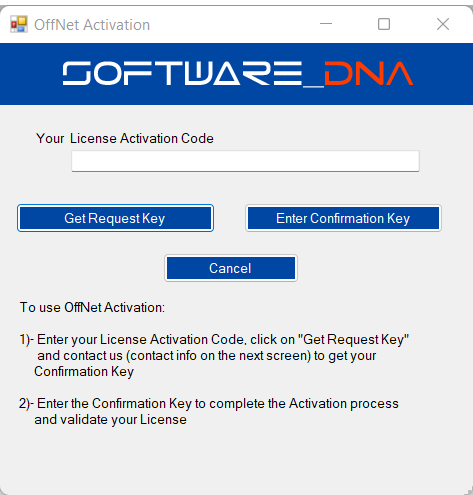
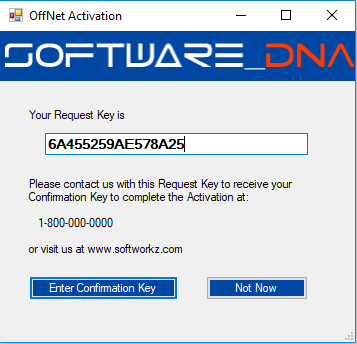
When selected, your application would issue the DNA_GetRequestKey() API call
to create the Request Key and present it to the User
We recommend that you ask the User for his License Activation Code before issuing the Request Key.
Although not required for the DNA_GetRequestKey() API call, it is required for the next step, and ensures
the User already has his License Activation Code before beginning the OffNet Activation process.
Example of OffNet Activation application dialog box (from the HelloWorld OffNet code sample)
Entering the Confirmation Key from the App
The Confirmation Key contains the License information
required to create the CDM from the Application.
Steps to allow the User to enter the Confirmation Key on the unconnected computer:
You will need to have a menu selection or button in your software application for OffNet Activation and entering
the Confirmation Key
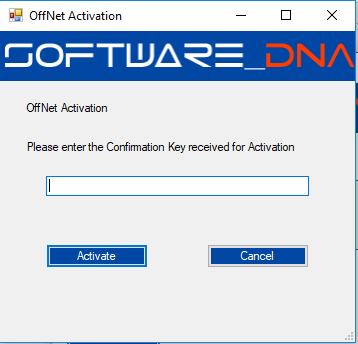
When selected, you would prompt the User for their License Activation Code and the Confirmation Key, and issue
the DNA_SetConfirmationKey() API call.
The ".CDM" License file would then be created and locked to the computer
The software can now be run on the unconnected computer
Example of OffNet Activation application dialog box (from the HelloWorld OffNet code sample)
Use of License Password and Email
We always recommend the use of the License Password and Email:
Use of the License Password makes the licensing process more secure
Use of the License Password allows the use of the License Manager Portal where a User can view his License,
change his Password and Email address, and view activated computers / seats
Use of the Email address allows "Resend Password"
Use of the Email address allows the user access to the License Manager Portal "License List" feature
When used with an OffNet Activation portal / web-page, entering this information is easy.
But if your process will be done using email
exchange or verbal exchange, then you can configure your DNA Product to not use a License Password (i.e. disable
User Authentication) or not ask for an email address.
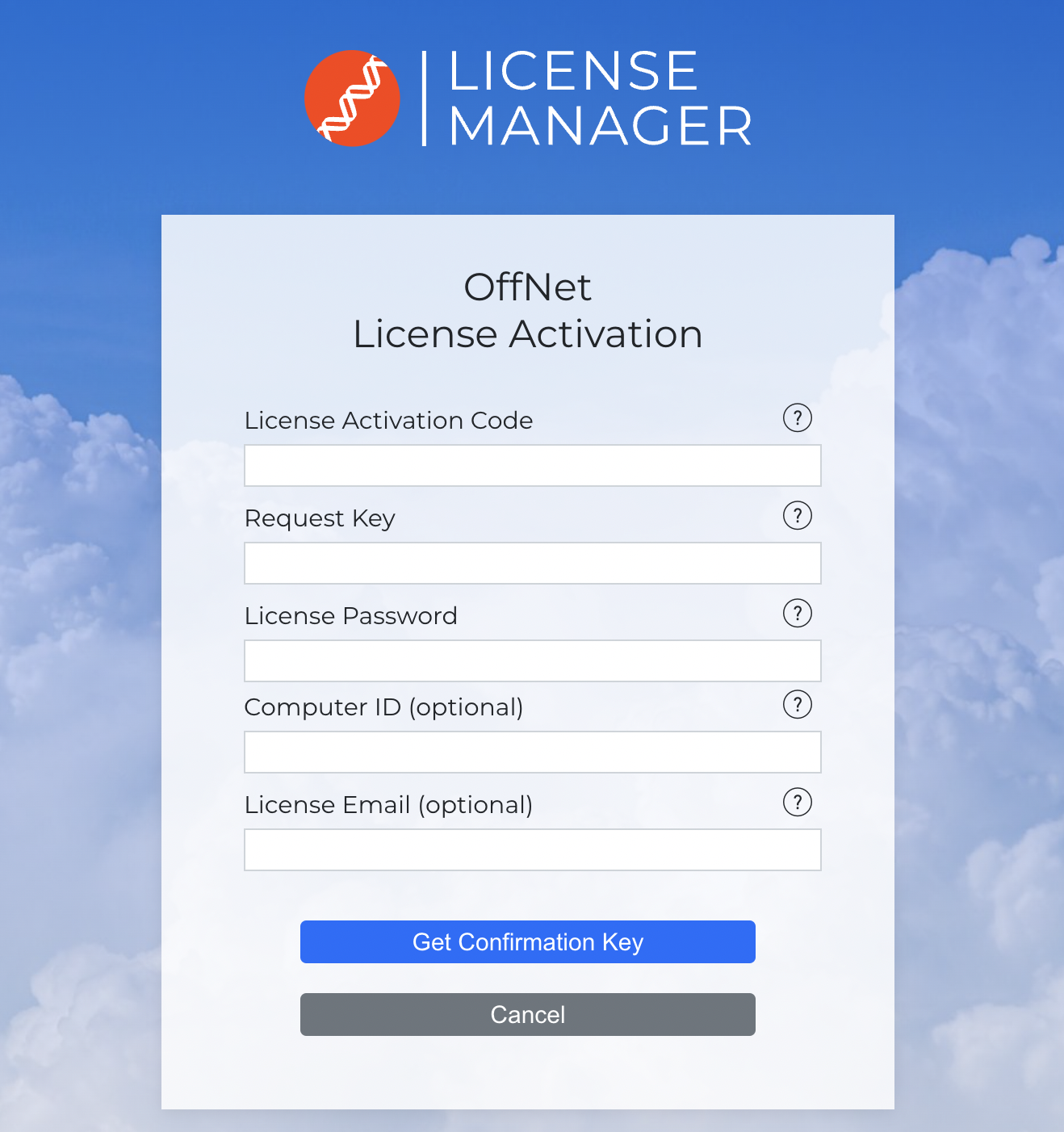
software_DNA OffNet Activation portal
We provide a software_DNA hosted OffNet Activation portal that allows Users to perform the OffNet
Activation themselves vs you performing the activation on their behalf, or creating your own portal.
To set-up the access to the software_DNA OffNet Activation portal:
The Computer ID field is for information only and is displayed in the
License Manager and the DNA Control Panel to quickly identify which computers are activated on the License.
Setting up your OffNet Activation web portal
The OffNet Activation Portal is really a simple web-based input form available to your Users on your web site to allow them
to complete the OffNet Activation without your intervention. It does require that the User have some access to the internet outside
the "secured" environment, for example, using a mobile phone.
Example of a OffNet Activation web page form
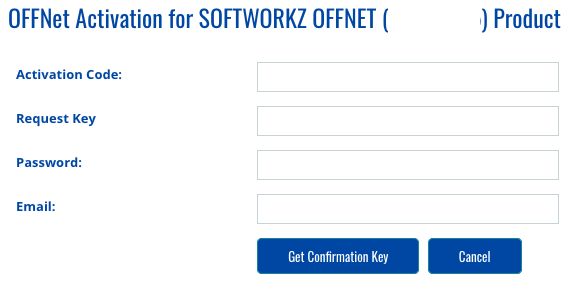
Once the User enters their information and clicks on Get Confirmation Key,
your web page will need to issue a HTTPS POST command to the DNA Server's DIRECT Connector
with the following Name/Value pairs
in the body of the POST:
| Name |
Value |
Description |
| TRIGGER |
GET_CONFIRMATION_KEY |
The Direct Connector command to retreive the Confirmation Key |
| DNA_PRODUCT_KEY |
<Product_Key> |
Your DNA Product Key for this product, example: P0002975 |
| DNA_ACTIVATION_CODE |
<Activation_code> |
The License Activation code entered by the User |
| DNA_PASSWORD |
<password> |
The License Password entered by the User |
| DNA_EMAIL |
<email> |
The Email entered by the User, or <blank> if not used |
| DNA_REQUESTKEY |
<Request_Key> |
The Request Key entered by the User |
| HMACMD5 |
<API_Key> |
Your RESTful API Key
You can view / reset your RESTful API Key from the DNA Control Panel in the Resources -> RESTful API page.
|
The HTTPS POST URL to issue is:
https://www.softworkz.com/login/admin/scripts/direct5.asp
The HTTPS POST Response body will include one line of text:
- the
<Confirmation_Key> itself, or
- a DNA Error Code as returned by the DNA API calls. For example: ERR_OPERATION_FAILED
Your web site page logic can detect an error code by looking for "ERR_" as the first 4 characters
of the response.
Examples of Request and Confirmation Keys
Request and Confirmation Keys will typically be 10-20 alphanumeric characters
| REQUEST_KEY |
6A455259AE578A25 |
| CONFIRMATION_KEY |
3AWD6Y6NVJ4J-568R8 |
HTTP POST code samples
Issuing a POST to the Direct Connector
                                Dim offnet_response As String
                                Dim str As String

                                ' Build the POST request Name/Value pair string

                                str="TRIGGER=GET_CONFIRMATION_KEY&DNA_PRODUCTID=P0000000&DNA_ACTIVATION_CODE=" &request.form("DNA_Activation_Code")
                                str=str&"&DNA_PASSWORD="&request.form("DNA_Password")
                                str=str&"&DNA_EMAIL="&request.form("DNA_Email")
                                str=str&"&DNA_REQUESTKEY="&request.form("DNA_RequestKey")
                                str=str&"&HMACMD5="&<Your_RESTful_API_Key>


                              	' create the HTPP Object and send

                                Dim offnetPost As WebRequest = WebRequest.Create("https://www.softworkz.com/login/admin/scripts/direct5.asp")
                                offnetPost.ContentType = "application/x-www-form-urlencoded"
                                offnetPost.Method = "POST"
                                Dim encodedpost As New ASCIIEncoding()
                                Dim postByteArray() As Byte = encodedPost.GetBytes(str)
                                offnetPost.Contentlength = postByteArray.Length
                                Dim postStream As IO.Stream = offnetPost.GetRequestStream()
                                postStream.Write(postByteArray,0,postByteArray.Length)
                                postStream.Close()

                                ' get the HTTP Response

                                Dim offnetResponse As HttpWebResponse = offnetPost.GetResponse()

                                If offnetResponse.StatusCode = HttpStatusCode.OK then

                                    Dim responseStream as IO.StreamReader = New IO.StreamReader(offnetResponse.GetResponseStream)
                                    offnet_response = responseStream.ReadtoEnd()
                                    offnetResponse.Close()
                                Else
                                    offnet_response = "Error " + offnetResponse.StatusCode
                                End If

                                confirmation_key.Text = offnet_response

                                ' offnet_response contains either the Confirmation Key, or a DNA Error Code, or the HTTP Status Code
								'  assumes a HTML <form> has captured :
                                '  - DNA_Activation_Code
                                '  - DNA_Password
                                '  - DNA_Email
                                '  - DNA_RequestKey

                                ' Build the POST request Name/Value pair string

                                str="TRIGGER=GET_CONFIRMATION_KEY&DNA_PRODUCTID=P0000000&DNA_ACTIVATION_CODE=" &request.form("DNA_Activation_Code")
                                str=str&"&DNA_PASSWORD="&request.form("DNA_Password")
                                str=str&"&DNA_EMAIL="&request.form("DNA_Email")
                                str=str&"&DNA_REQUESTKEY="&request.form("DNA_RequestKey")
                                str=str&"&HMACMD5="&<Your_RESTful_API_Key>

                                ' create the HTTP Object and send

                                set objHttp = Server.CreateObject("MSXML2.ServerXMLHTTP")
                                objHttp.setOption 2, 13056
                                objHttp.open "POST",request("script_name"),false
                                objHttp.setRequestHeader "Content-type", "application/x-www-form-urlencoded"
                                objHttp.Send str

                                ' get the HTTP response

                                Response_status=objHttp.status
                                Response_status_text=objHttp.statustext
                                Response_text=objHttp.ResponseText

                                set objHttp = nothing

                                ' Response_text contains either the Confirmation Key, or a DNA Error Code
								'  assumes a HTML <form> has captured :
                                '  - DNA_Activation_Code
                                '  - DNA_Password
                                '  - DNA_Email
                                '  - DNA_RequestKey

                                ' Build the POST request Name/Value pair string

                              	$data = array('TRIGGER' => 'GET_CONFIRMATION_KEY', 'DNA_PRODUCTID' => $DNA_ProductID, 'DNA_ACTIVATION_CODE' => $DNA_Activation_Code, 'DNA_PASSWORD' => $DNA_Password, 'DNA_EMAIL' => $DNA_Email, 'DNA_REQUESTKEY' => $DNA_RequestKey, 'HMACMD5' => $RESTFUL_API_Key);

                              	$options = array(
                                  'http' => array(
                                      'header'  => "Content-type: application/x-www-form-urlencoded",
                                      'method'  => 'POST',
                                      'content' => http_build_query($data)
                                  	)
                              	);

                                $url = 'http://www.softworkz.com/login/admin/scripts/direct5.asp';

                                # Create the context
                                $context = stream_context_create($options);

                                # Get the response (you can use this for GET)
                                $response = file_get_contents($url, false, $context);

                                # Response contains either the Confirmation Key, or a DNA Error Code