Last Modified October 2, 2026
- Home
- Guides
- TurnKey Activation
- TurnKey Built-in Screens
The following are the Version 7 screens used by the TurnKey DNA_ProtectionOK () call for the different license models.
License Activation Code screen
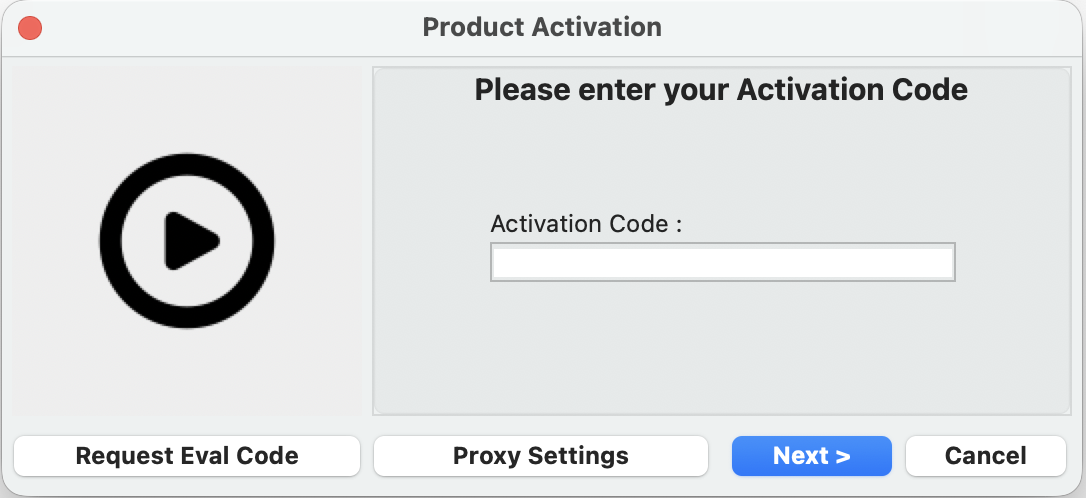
If an activation or re-activation is required, the user will need to provide a License Activation Code.
If the <Request_EvalCode> parameter is set to "1", the
Request Eval Code button will be enabled and the user can request an Evaluation Code
which will be sent to an email address provided by the user.
If the <Request_EvalCode> parameter is set to "2", the
Evaluate Now button will be displayed. If used, the DNA Server will assign an
Evaluation Code and activate the software immediately.
If the <Request_EvalCode> parameter is set to "0", no button will be displayed.
The Proxy Setting button will show the user the Proxy Server settings
if any exist, and allow him to enter the settings if required. (see below)
For Offline Activation, entering the License Activation code, then double-clicking on the
"lock icon" (Version 6 and above), or "globe icon" (in previous versions)
will create the Offline Activation ".LIC" pre-license file required to complete the Offline Activation.
See Offline Activation for more information.
Single-User with Roll-Over Re-activation Activation and Re-Activation screens
Activation Screen:
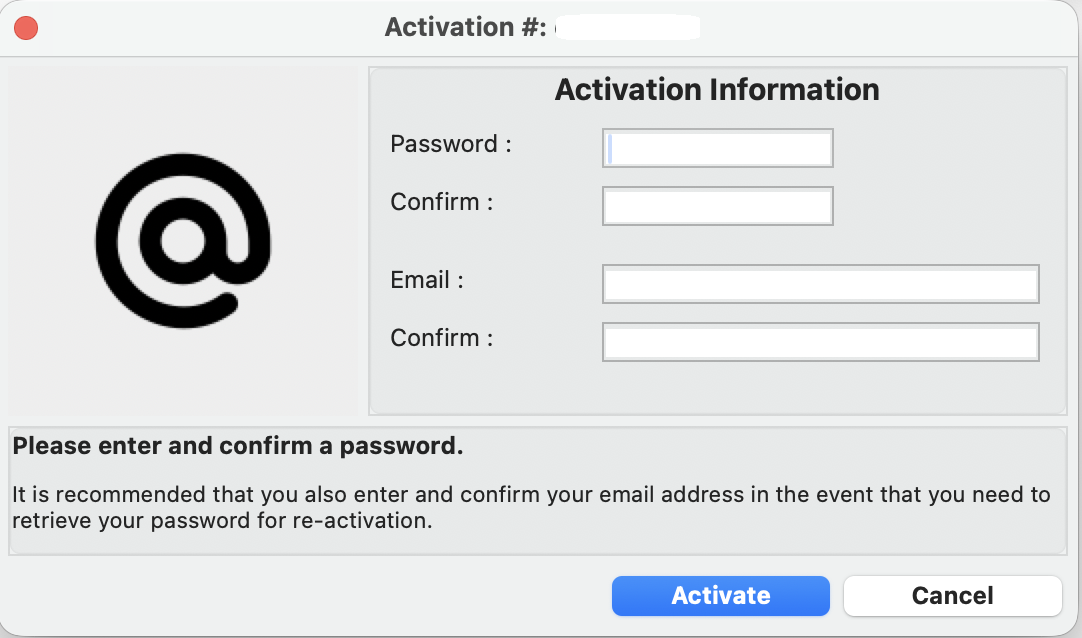
Once the License Code is captured, if this is the initial activation of the License, then the user must provide a
password for the Activation Code, and optionally an email address. The email address is used if the user ever
needs to request a re-send of the password for the Activation Code. Both the password and the email need to
be confirmed by the user by entering them twice.
Re-Activation Screen:
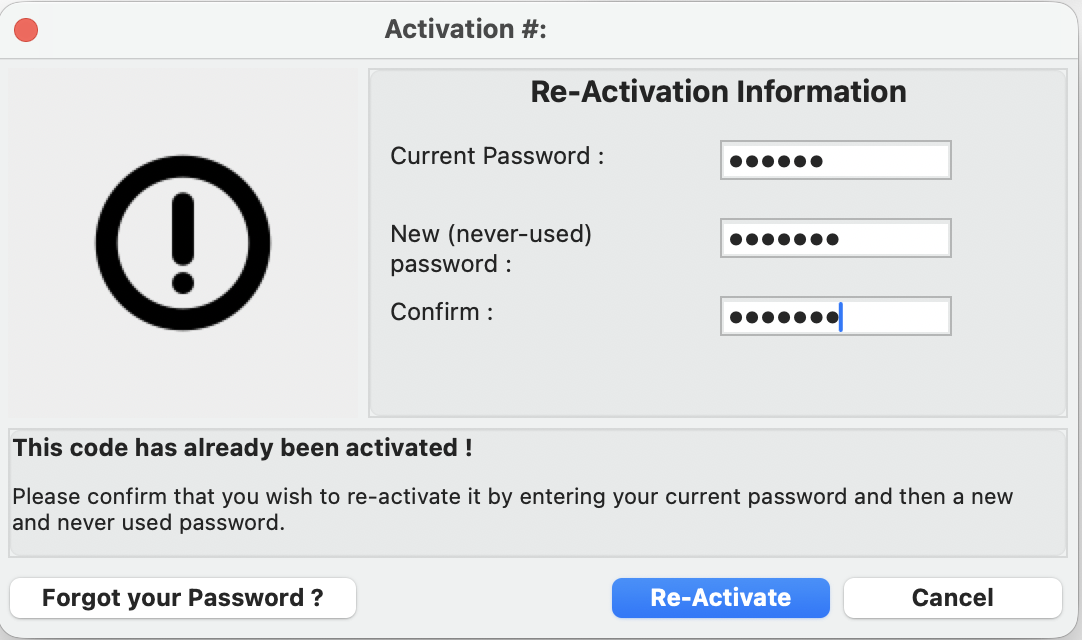
When re-activating a License, the user must provide the current password for the Activation Code, and enter a
new (never-used) password. The user must confirm the new password by entering it a second time.
The user is also provided with the option to have the current password sent to the email address that was
provided at the time of activation for this Activation Code.
Single-User without Roll-Over Re-activation Activation and Re-Activation screens
Activation screen:
Once the License Code is captured, if this is the initial activation of the License, then the user must provide a
password for the Activation Code, and optionally an email address. The email address is used if the user ever
needs to request a re-send of the password for the Activation Code. Both the password and the email need to
be confirmed by the user by entering them twice.
Re-Activation Screen:
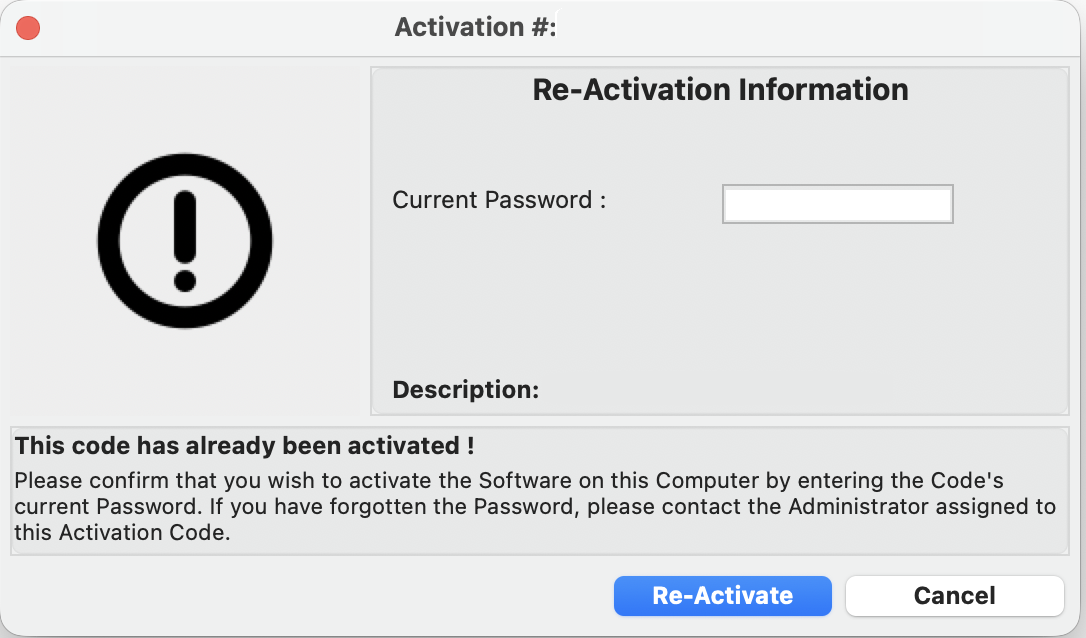
When re-activating a License, the user must provide the current password for the Activation Code.
The user is also provided with the option to have the current password sent to the email address that was
provided at the time of activation for this Activation Code.
Multi-User / Floating License Activation and Re-Activation screens
Activation screen:
Once the License Code is captured, if this is the initial activation of the License, then the user must provide a
password for the Activation Code, and an email address. The email address is used if the user ever
needs to request a re-send of the password for the Activation Code. Both the password and the email need to
be confirmed by the user by entering them twice.
Re-Activation Screen:
When activating a new "Seat", or re-activating a "Seat",
the user must provide the current password for the License Activation Code.
The user is also provided with the option to have the current password sent to the email address that was
provided at the time of activation for this Activation Code.
Request Eval Code Screen
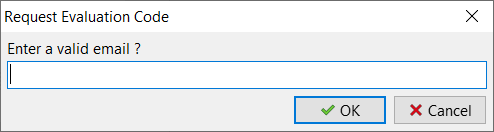
If the user clicks on Request Eval Code, the User will need to enter
an email address where the Evaluation License Code will be sent.
Proxy Settings Screen
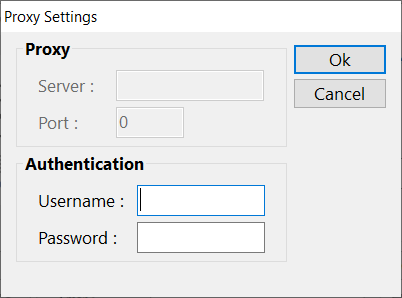
If the user clicks on Proxy Settings, the Do All will show the user the Proxy Server
settings if any exist, and allow him to enter the settings if required.
When the Proxy Settings window is displayed, pressing the
CRTL-SHIFT-ALT-I keys simultaneously will add the
Use Internet Explorer Settings check box. This allows the user to turn off
the automatic use of the IE settings.
This workaround resolves an outstanding trouble report whereas a Win2000 configuration using dial-up access
to the Internet was not able to complete the activation process.